Categorieën
English LibrePlan

LibrePlan, behind the scenes

It’s been a while since I wrote a blogpost about LibrePlan, but apart from that things have been very busy. There is some behind-the-scenes stuff going on that I hope I can share with you all somewhere in the future. Now I would like to write about the things that have happened since my last post.

It is a lot. I spoke about LibrePlan at the NLUUG conference, at the SPIder foundation meeting, both located in the Netherlands. I just uploaded my presentation to SlideShare so you can all find it here.

I talked with companies (email or conferencecall) in several countries (US, Spain, France,  Netherlands) who are considering to implement LibrePlan and even gave a couple of demo’s using Skype and GotoMeeting.

I talked to a couple of companies who wanted to have some extra functionality build into LibrePlan and we shared some great ideas.

So, simply put, there is a lot going in behind the scenes.

Categorieën
English Language

Scripting in Gimp. The hard and the nice way…

Small problem intro…

I am writing another book. I want to add numbered bullets to a screenshot. All bullets added as images each on a separate layer to easy the moving around. This way I can reference these bullets from the text in my book. Well, why not do some scripting in Gimp to make this happen?

It all sounds harmless enough now, doesn’t it?.

First: the hard way…

I thought: “Well, the script-fu scripting language, as is in use in the excellent GIMP program, has been around for a long time. There should be enough example scripts and I will be out of the woods in minutes.”. Well, you can just forget about that.

It is like the Lisp programming language so you will be writing a lot of “(” and “)”.

To find out more about defining the function and registering it with the Gimp program I direct you to other webpages. There is enough info on that in the script-fu tutorial.

Anyway, at the end of a hard days work, I had a script that worked! It added a layer to an image, it loaded a small image and placed it on the new layer and also gave the new layer a name.

It looks like this (beware of the newlines) :

(script-fu-register
  "script-fu-jb-count"                        ;func name
  "JB count"                                  ;menu label
  "add layers with numbers."                  ;description
  "Jeroen Baten"                              ;author
  "copyright 2013, Jeroen Baten"              ;copyright notice
  "October 10 2013"                           ;date created
  ""                                          ;image type that the script works on
  SF-IMAGE    "Image"         0
)

(script-fu-menu-register "script-fu-jb-count" "/Scripts/JB-Scripts")

(define (script-fu-jb-count theImage )
  (let*
    (
    (new-layer1 nil)
    )

    ; Create a new layer
    (set!  new-layer1  (car (gimp-file-load-layer 1 theImage "piclib/1.png" ) ) )
    ; Give it a name
    (gimp-layer-set-name new-layer1 "Laag 1")
    ; Add the new layer to the image
    (gimp-image-add-layer theImage new-layer1 0)
  )
)

Sofar, so good. Turns out there is (almost) no looping possible in script-fu. Well, there is, but you really don’t want to go there (just sayin’).

Second: the nice way:

So I turned to using the Python-fu stuff (I love python). If you compare the two scripts the differences should be easy to spot:

#!/usr/bin/env python

from gimpfu import *

def insert_numbers(theImage,count) :
    new_layer1 = pdb.gimp_file_load_layer(theImage, "piclib/1.png")
    pdb.gimp_layer_set_name(new_layer1,"Laag 1")
    pdb.gimp_image_add_layer(theImage,new_layer1,0)

register(
    "python_fu_jbcount2",
    "Insert numbers",
    "Add layers to an image with counters in them",
    "Jeroen Baten",
    "Jeroen Baten",
    "2013",
    "JBCount2",
    "*",
    [
        (PF_IMAGE, "img", "Image:", None),
        (PF_STRING, "string", "Aantal", '1'),
    ],
    [],
    insert_numbers, menu="/JBCount2")

main()

In short:

  • In all internal Gimp routine names the “-” is replaced with an “_”.
  • A “pdb.” is placed before all internal Gimp routine names.

Now, adding looping to this should be a walk in the park.

Caveats

Beware if the fact that Script-fu stuff belongs in “~/gimp-2.8/scripts”  and Python-fu scripts belongs in “~/gimp-2.8/plug-ins”.
Categorieën
Geen categorie

WordPress monitoring with Zabbix

In want to be able to see if WordPress needs to be updated on a specific webhost.

I have several WordPress sites and it would be nice to see which ones need to be updated.

First, I place a small file in the root directory of every WordPress instance that I call “zabbix-check.php”. Warning: choose your own filename! You don’t want hackers to scriptsearch for hackable WordPress instances!

Anyway, after this short disclaimer we continue with placing the following php code in said file:

<?PHP
# script to test remotely if wordpress update is needed
# tested on WordPress 3.6
# 1.0 J.Baten september 17, 2013
# License: GPLv2

ini_set('display_errors',1);
ini_set('display_startup_errors',1);
error_reporting(-1);

require('wp-load.php');
require('wp-admin/includes/update.php');
print "Currently: ".$wp_version;

$updates = get_core_updates();
if ( !isset($updates[0]->response) || 'latest' == $updates[0]->response ) {
echo ', no update needed';
} else {
echo ', update needed';
}
?>

All I need to do now is add a scenario to Zabbix that checks for the text “no update needed”. It also shows the version number if you like.

I hope this script is usefull to you.

Categorieën
LibrePlan

Project margins feature in LibrePlan

Hello,

It’s been a while and Miciele has been very busy developing stuff for LibrePlan.

Our latest development has to do with project margins. As a projectmanager you will probably want to know if a task in a project takes longer than expected because it is your job to act upon those kind of things. Well, now you can!

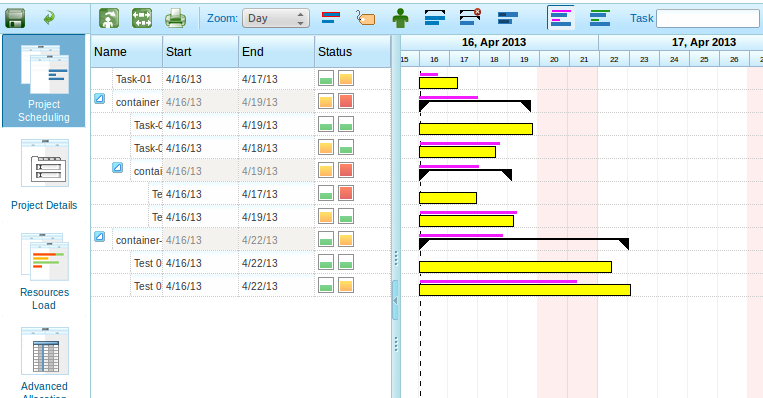
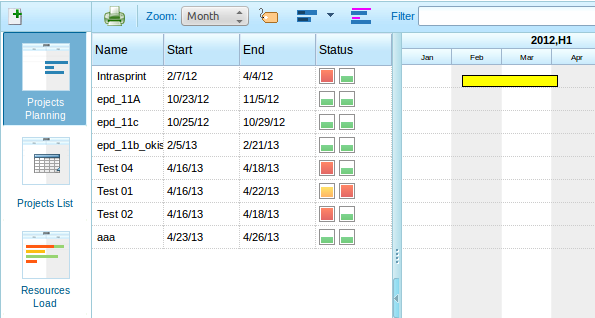
In the “general data” tab of a project is is possible to add margins on time and budget. For instance, you can say that you work with a 10% margin. As soon as a task takes longer than expected the indicator turns orange. As soon as the task takes more than 10% longer the indicator turns red. This way, you do not have to check all of your projects every day, you can only check the ones that need some attention.

The screenhots that show this functionality are as follows: first the list of projects that show you which project needs attention:

margin-status


As you can see in the picture above, there are some projects that need attention.  There is a new column and the left icon is for time, and the right column is voor money. Now, how does an open project look?

margin-status-project-detail

Now when I open one of those projects like in the picture above, I can see the tasks that need attention, and I can even see the containers that have tasks that need attention.

This makes it very easy to find tasks that need attention.

There is more stuff that we are working on but for now this should be enough 🙂

Kind regards,

Categorieën
Geen categorie

Inlog ellende op werk.nl

De site werk.nl is voor velen makkelijk en voor een aantal mensen duidelijk niet. Zo gebruik ik de site als werkgever om mensen te zoeken die misschien bij een vacature van me zouden kunnen passen.

Helaas heb ik er continue last van dat ik vergeet me af te melden en ik elke keer wordt welkom geheten met de melding:  “An error occurred while processing the request. Try refreshing your browser. If the problem persists contact the site administrator”. Wat je ook doet (reload, F5, Ctrl-R, Ctrl-F5) niks helpt. De reden daarvoor is dat er nog oude cookies aanwezig zijn en de site eerlijk gezegd te brak gecodeerd is om hier netjes mee om te gaan.

Ten einde raad was ik vanmorgen begonnen om een extension te gaan bouwen voor Google Chrome zodat ik, en met mij vele anderen als ik afga op een eenvoudige google search, verlost werden van dit stuk ontbrekende functionaliteit.

Maar al zoekende bleek de oplossing erg makkelijk te realiseren door een gevorderde instelling binnen de Google Chrome browser.

De uitleg staat hier: https://support.google.com/chrome/bin/answer.py?hl=nl&answer=95647 . Volg de beschreven stappen onder ” Machtigingen voor cookies en sitegegevens aanpassen”, klik op: “Cookies verwijderen” en daarna op “Uitzonderingen instellen voor cookies van specifieke websites of domeinen”.

Stel daarmee in dat alle cookies van “[*.]werk.nl” bij het verlaten van Chrome verwijderd moeten worden.

Klaar!

Elke keer als Chrome wordt afgesloten worden de cookies verwijderd en kun je daarna gewoon weer inloggen.